How to setup GPG and SSH agent
Linux
Original documentation here
Windows
Requirements
- A compatible Yubikey
- A current version of GnuPG software
- Windows: GPG4Win
- macOS: GPG Suite
- Linux: Pre-installed on most distributions
Install and configure GPG4Win
Notice
Before you begin make sure GPG4Win is installed on your Windows box.
Start GPG
Enable SSH support for GPG
enable-putty-support
enable-ssh-support
use-standard-socket
default-cache-ttl 600
max-cache-ttl 7200
Restart GPG
Download wsl-ssh-pageant
Download WSL-SSH-pageant and save it locally on your machine. This will be used to connet GPG with the SSH on Windows 10/11.
Automate GPG and WSL-SSH-pageant
Create a new Symlink in your Startup folder for the GPG Agent and the WSL-SSH-pageant.
"C:\Program Files (x86)\GnuPG\bin\gpg-connect-agent.exe" /bye
C:\Tools\wsl-ssh-pagent\wsl-ssh-pageant-amd64-gui.exe -force -systray -verbose -winssh winssh-pageant
Finally set an environment varible for the SSH Agent Socket using this guide
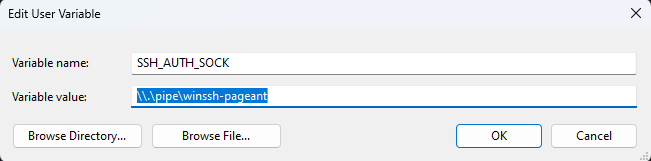
Restart and Test the SSH Agent connectivity
Generating Keys externally
Warning
It is strongly recommended that you to generate keys on an offline system, such as a live Linux distribution like Ubuntu. Note that with live Linux, certain packages (like scdaemon) may need to be installed manually.
Generate a new GPG Signing key
When prompted select to specify the key type choose 9 or 1 for RSA if you have a YubiKey NEO.
Please select what kind of key you want:
   (1) RSA and RSA
   (2) DSA and Elgamal
   (3) DSA (sign only)
   (4) RSA (sign only)
   (7) DSA (set your own capabilities)
   (8) RSA (set your own capabilities)
   (9) ECC (sign and encrypt) *default*
  (10) ECC (sign only)
  (11) ECC (set your own capabilities)
  (13) Existing key
  (14) Existing key from card
Your selection? 9
In the next step we are going to specify the "length" of the key. For a newer elliptic curve the recommended value is 1 (Curve 25519). For the RSA keys the length depends on the key type.
- For a YubiKey NEO, select 2048
- For a YubiKey 4 or 5, enter 4096
Please select which elliptic curve you want:
   (1) Curve 25519 *default*
   (2) Curve 448
   (3) NIST P-256
   (4) NIST P-384
   (5) NIST P-521
   (6) Brainpool P-256
   (7) Brainpool P-384
   (8) Brainpool P-512
   (9) secp256k1
Your selection? 1
The next question is about the expiration of our new key. The default value is unlimited however, for production use it is recommended to specify this value.
Please specify how long the key should be valid.
         0 = key does not expire
      <n>  = key expires in n days
      <n>w = key expires in n weeks
      <n>m = key expires in n months
      <n>y = key expires in n years
Key is valid for? (0) 2y
Next we have to enter our personal information
- Real Name Be sure to enter both your first and last name.
- Email Address
- If desired, a Comment about this key
GnuPG needs to construct a user ID to identify your key.

Real name: Daniel H******
Email address: daniel@h******.hu
Comment:
You selected this USER-ID:
    "Daniel H****** <daniel@h******.hu>"

Change (N)ame, (C)omment, (E)mail or (O)kay/(Q)uit?
Warning
Make sure to use a strong passphrase for the key and store it somewhere safe ( It is strongly recommended to use a password manager )
Info
While the key is being generated, move your mouse around or type on the keyboard to gain enough entropy.
When the key is been generated, you will see several messages displayed. Make a note of the key ID, that is displayed in the message such as "gpg: key E353B******** marked as ultimately trusted". The key ID in this case is E353B******** and you will need this key ID to perform other operations.
gpg: revocation certificate stored as 'C:\\Users\\dh***\\AppData\\Roaming\\gnupg\\openpgp-revocs.d\\E353B********.rev'
public and secret key created and signed.

pub   ed25519 2022-12-29 [SC] [expires: 2024-12-28]
      E353B***********************************
uid                      Daniel H****** <daniel@h******.hu>
sub   cv25519 2022-12-29 [E] [expires: 2024-12-28]
Add a new GPG Authentication key
As a first step we have to select the new key's type. The recommended is (11) ECC (set your own capabilities) for Elliptic Curve and (8) RSA (set your own capabilities) for RSA.
Please select what kind of key you want:
   (3) DSA (sign only)
   (4) RSA (sign only)
   (5) Elgamal (encrypt only)
   (6) RSA (encrypt only)
   (7) DSA (set your own capabilities)
   (8) RSA (set your own capabilities)
  (10) ECC (sign only)
  (11) ECC (set your own capabilities)
  (12) ECC (encrypt only)
  (13) Existing key
  (14) Existing key from card
Your selection? 11
During the next step we have to select the key usage type. By default the allowed actions are Signing/Encrypt or Signing. Make sure to toggle off both Signing and Encrypt and enable Authenticate.
Possible actions for this ECC key: Sign Authenticate
Current allowed actions: Sign

   (S) Toggle the sign capability
   (A) Toggle the authenticate capability
   (Q) Finished

Your selection? s

Possible actions for this ECC key: Sign Authenticate
Current allowed actions:

   (S) Toggle the sign capability
   (A) Toggle the authenticate capability
   (Q) Finished

Your selection? a

Possible actions for this ECC key: Sign Authenticate
Current allowed actions: Authenticate

   (S) Toggle the sign capability
   (A) Toggle the authenticate capability
   (Q) Finished
In the next step we are going to specify the "length" of the key. For a newer elliptic curve the recommended value is 1 (Curve 25519). For the RSA keys the length depends on the key type.
- For a YubiKey NEO, select 2048
- For a YubiKey 4 or 5, enter 4096
Please select which elliptic curve you want:
   (1) Curve 25519 *default*
   (2) Curve 448
   (3) NIST P-256
   (4) NIST P-384
   (5) NIST P-521
   (6) Brainpool P-256
   (7) Brainpool P-384
   (8) Brainpool P-512
   (9) secp256k1
Your selection? 1
In the last step we have to choose an expiration date for this key as well.
Please specify how long the key should be valid.
         0 = key does not expire
      <n>  = key expires in n days
      <n>w = key expires in n weeks
      <n>m = key expires in n months
      <n>y = key expires in n years
Key is valid for? (0) 2y
Key expires at 28-Dec-24 19:43:24 Central Europe Standard Time
Confirm the creation of the new key and enter the passphrase from the previous step.
Once they new key is added we should see it in the new details
sec  ed25519/EC79************
     created: 2022-12-29  expires: 2024-12-28  usage: SC
     trust: ultimate      validity: ultimate
ssb  cv25519/75B1************
     created: 2022-12-29  expires: 2024-12-28  usage: E
ssb  ed25519/6C87************
     created: 2022-12-29  expires: 2024-12-28  usage: A
[ultimate] (1). Daniel H********** <daniel@h**********.hu>
Create a backup of your key
Warning
Store the text output from the command in a safe place ( e.g. Save the text in password managers, save the text on a USB storage device ).
Import the new key to your YubiKey
Select the signing key first and provide your passphare and Admin PIN to move the key to the card.
Really move the primary key? (y/N) y
Please select where to store the key:
   (1) Signature key
   (3) Authentication key
Your selection? 1
Repeat the same step for the authentication key
gpg> keytocard
Really move the primary key? (y/N) y
Please select where to store the key:
   (1) Signature key
   (3) Authentication key
Your selection? 3
Once both the Signing and the Authentication key is moved to the YubiKey switch to key slot #2 and move the Encryption key as well.
Finally execute save to exit gpg and finalize your changes. You can verify the changes with gpg --card-status